
Demonstration Setup
The demonstration for using the Adaptive Metronome is simple and straightforward. You will only need to run one file within the cloned/downloaded repository.
If you are not familar with using GIT then do not worry, you can follow the instructions below on how to install the setup and run it:
1. Clone the repository
Use the following GIT Command if installed:
git clone git@github.com:arme-project/AdaptiveMetronome.gitIf you do not have GIT Install then you can download the repository as a ZIP file:

2. Running the Executable
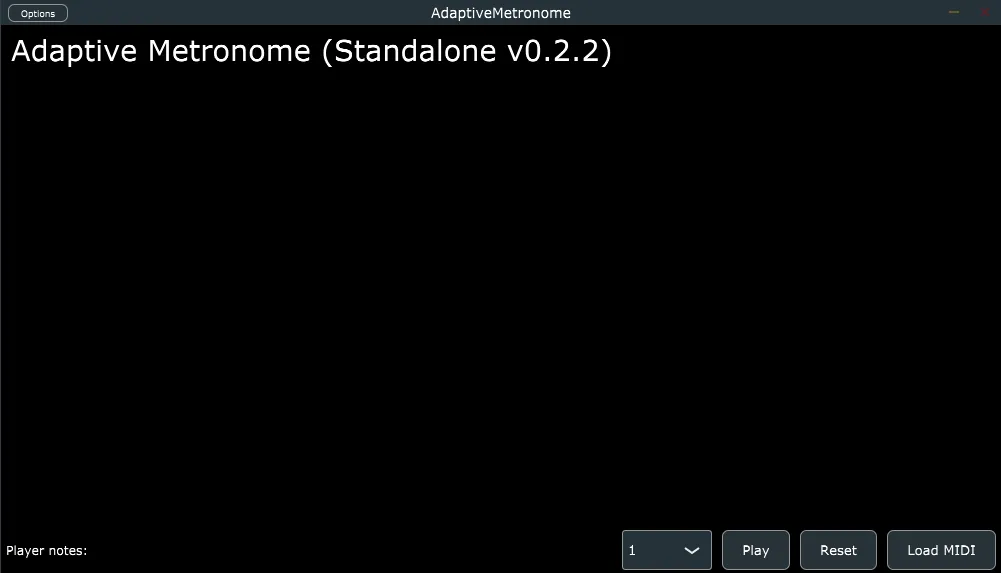
Within the file, you may run the AdaptiveMetronome.exe. However, if that does not work then you will need to navigate into the original executable file:
Builds > VisualStudio2022 > x64 > Debug > Standalone Plugin > AdaptiveMetronomeThis should open the GUI:
3. Loading MIDI

In the GUI, press Load MIDI and navigate where you have cloned (or extracted if you downloaded the ZIP) the repository. Inside, you will find a directory called Audio containing MIDI Files. For the purpose of the demonstration, you will only need to use haydn2 for the Adaptive Metronome. Press on the MIDI file and the GUI should change:
4. Press Play
At this point, you can experiment with the different parameters that you can see. In the GUI, press Play to start the Ensemble on the loaded MIDI file. If you want to play from the beginning, press Reset and this should reset the Ensemble.
You will need to have the score-follower in MAX/MSP to be able to introduce inputs into the metronome but you should be able to hear the ensemble playing.