
Demonstration Setup
If you are struggling to understand how to work this, then the score-follower offers a more friendly GUI within ‘Presentation Mode’. You can find instructions to run this here: Running through Presentation Mode
1. Clone the repository
Use the following GIT Command if installed:
git clone git@github.com:arme-project/score-follower.gitIf you do not have GIT Install then you can download the repository as a ZIP file:

- This is used for the Metronome but the same idea works the same with the score-follower
2. Extracting Antescofo
Before you can start anything, you will need Antescofo plugin to be able to run correctly. Inside the folder, under Packages you can find a packaged Antescofo which you will need to extract and move the folder to where Max 9 can find for External Packages. In this case, you will need to find the Packages directory that Max 9 look in.
You can find this in Max 9 under Options > File Preferences..., where it says User Library you can find the Package in the parent directory of Library where you can put the extracted Antescofo in:

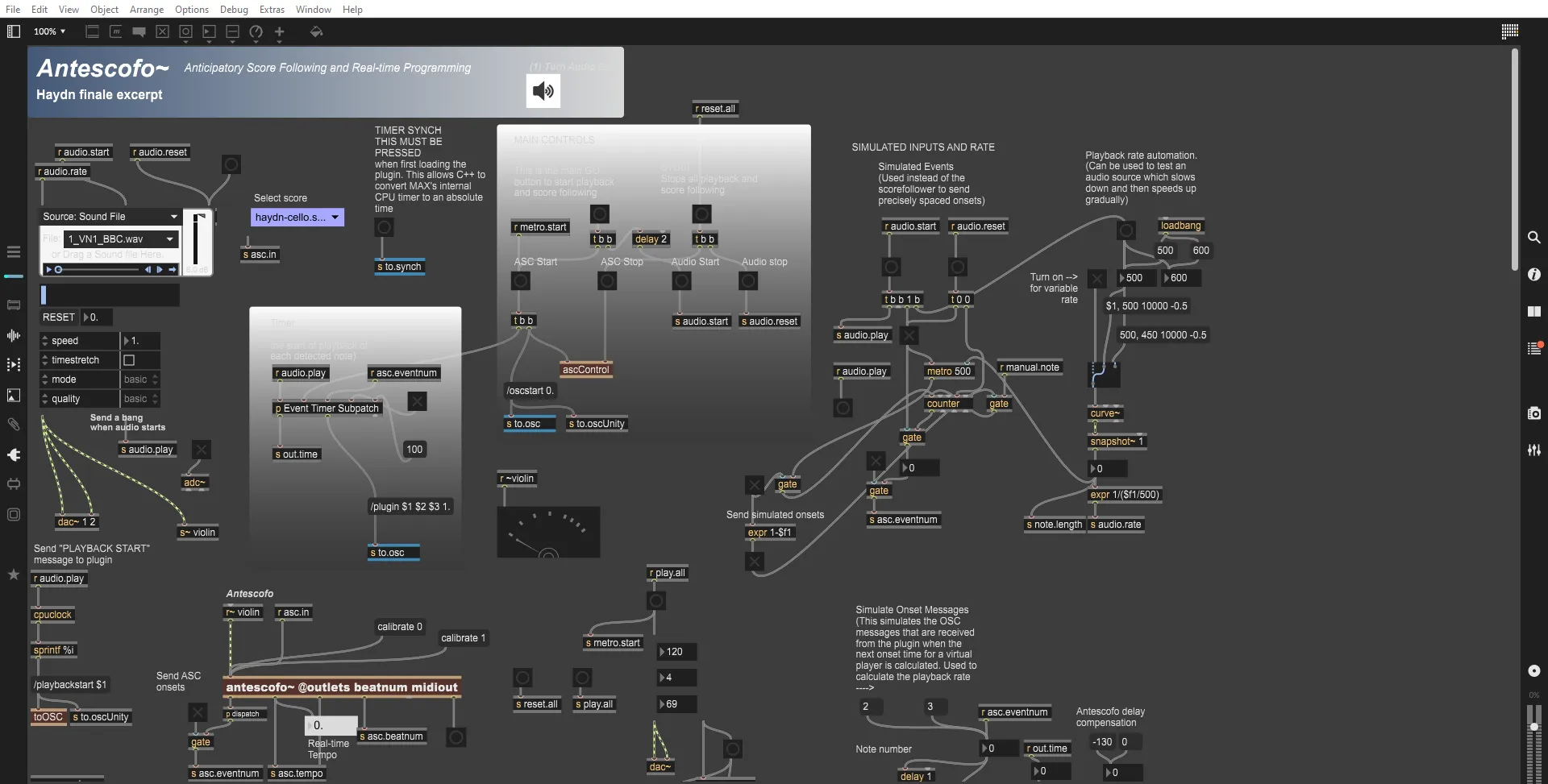
You can then open the score-follower inside the directory which opens the project in Max 9 (indicate if needed):
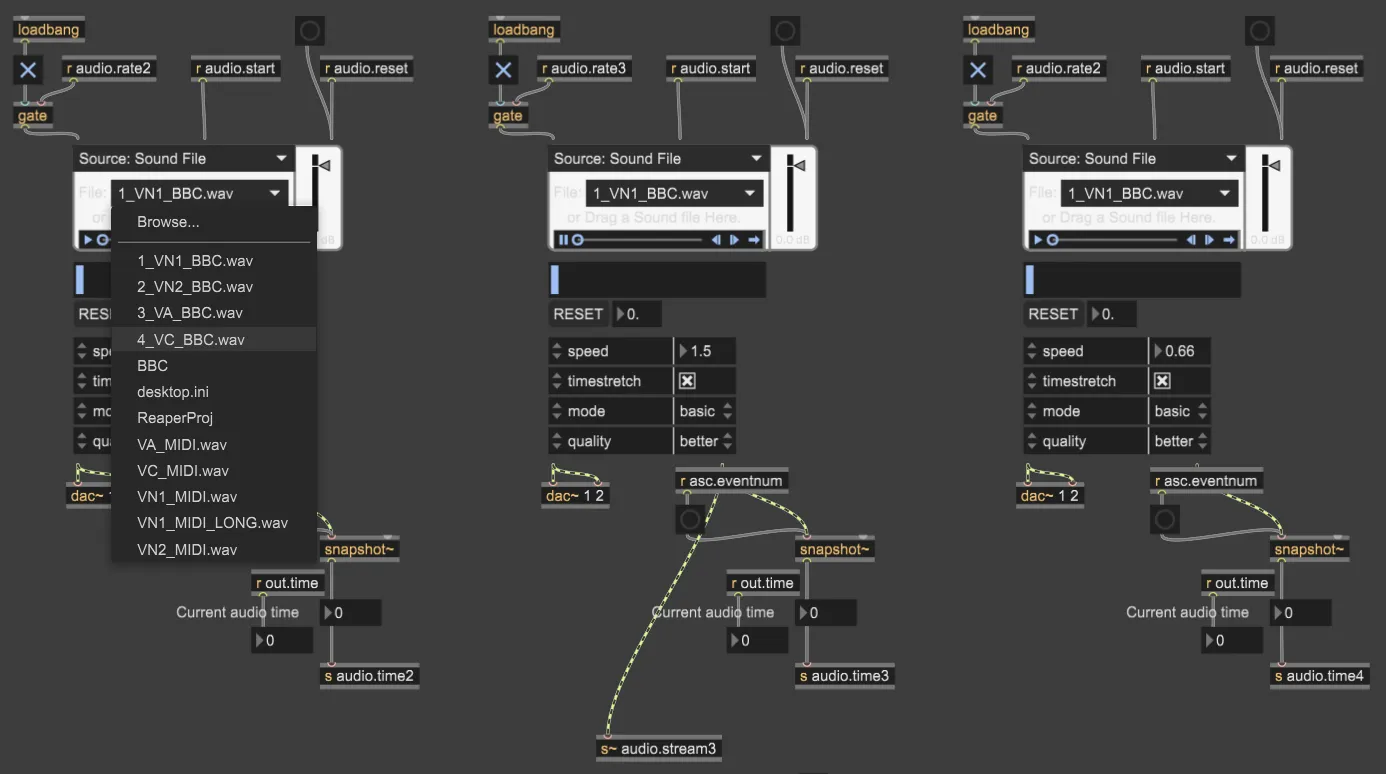
3. Set Audio Files for each Player
You can set the audio file used for each player that should be played for each player.
The top four selections are pre-recorded audio we can use to play the notes.
For the user player (very top left of the project):
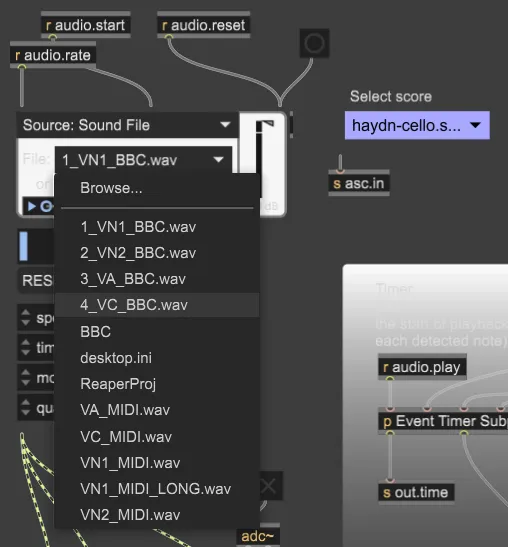
You can also set the audio files for the rest of the players on the Ensemble (near the bottom of the project):
4. Methods of Onsets
There are currently two different ways of Onsets with the Adaptive Metronome (running in the background) which you can select from:
- Simulated Onsets - Based on a metronome an Onset is generated automatically periodically (defaulted to 0.5 seconds).
- Antescofo - Score loaded into Antescofo, and pre-recorded audio file or audio from microphone plays into Antescofo
5. Playing the Model
Before you press Play, you will want to synchronise the Adaptive Metronome and Max 9 by pressing the Timer Synchronise button found at the top middle of the project:
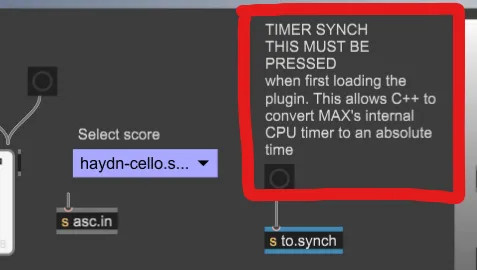
Make sure that the hadyn2.mid file is loaded into the Adaptive Metronome and that you turn audio on Max (top volume symbol in the project or bottom right of the program (off/on symbol)).
Once you have done all of this, you can press Play in the Metronome or the checkbox under START in Max 9 (middle white box) to start the Ensemble. To stop the playback, press Reset in the Metronome or checkbox under STOP in Max 9.