
Demonstration Setup
1. Run Adaptive Metronome and Score Follower
As previously mentioned, the Unity project will need Adaptive Metronome and Score Follower running on the PC to allow the ARME application in the Magic Leap 2 run correctly.
Please do that first before continuing with this section.
2. Clone the repository
Use the following GIT Command if installed:
git clone git@github.com:arme-project/ARME-XR-Integration-ML2.gitIf you do not have GIT Install then you can download the repository as a ZIP file:

- This is used for the Metronome and score-follower but the same idea works the same with the XL Integration ML2
3. Download and configure Magic Leap 2
Open Magic Leap Hub 3 and connect the Magic Leap 2 device through a USB cable. Once connected, inside the headset, you will be prompted to select a connection type, select USB Tethering to allow for connection to the score-follower.
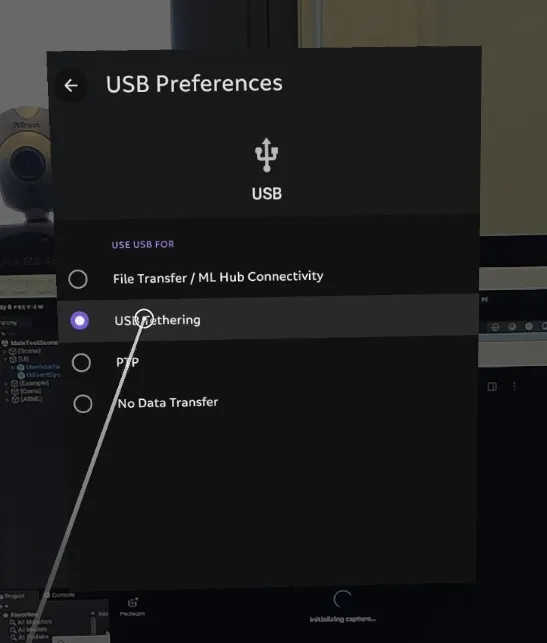
You can change this afterwards in Settings -> Connected Devices -> USB.
4. Load ARME in Magic Leap 2 and connect Score Follower
Inside the headset, you should scroll through the applications to find the ARME application. Press this and it should open the app.
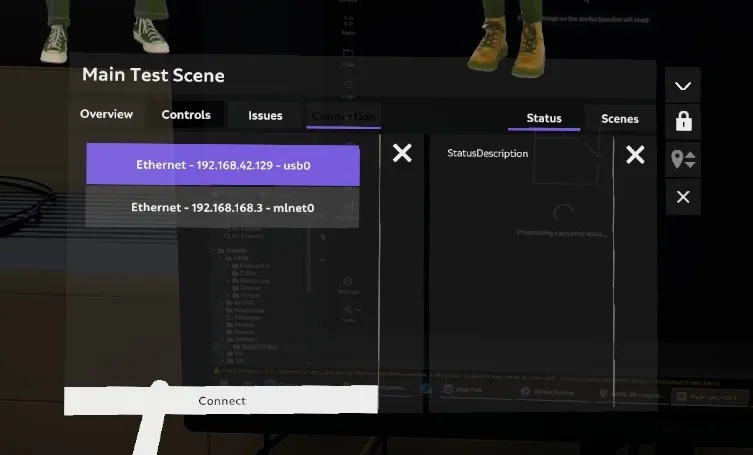
You will be prompted to then select a connection, this is the USB link that we have between the headset and PC (Ethernet, usb0). This connection should create a link with the application and the score-follower that is running in the background on the PC.
Once you have selected, it should automatically connect with the score follower and the menu should then show Connected. Otherwise, it will continue to load on ... until then.
5. Press Play once connected
Once the score-follower and ARME application is fully connected and setup, the visuals inside the headset should then react when you press Play in the score-follower/Adaptive Metronome. As well as you press Reset to start over.